

Mozilla is retiring Pocket, one of the world’s most beloved read-it-later apps. I didn’t take it very well.
The app was my go-to article reader for five years! I ranked among their top readers for two of those years. And all the while, I was insanely grateful for their email newsletter, clean interface, and unwavering stability.
Still, I trust Mozilla will do some good with their freed-up resources. (They better!) And you’re not alone if you’re wondering where to go next.
I tried a few read-it-later alternatives for when Pocket says au revoir on October 8, 2025. Here are the three that I recommend! Skip to the first app if you already know what’s happening to Pocket, or read on for a recap of the retiring process.
Pocket Discontinuation Q&A
Just to be clear, I don’t work at Mozilla or Pocket. I’m just rephrasing what Mozilla has already said on the matter here and adding some personal observations.
Why is Pocket Going Away?
I have no idea! They’ve said that they’re “channeling their resources into projects that better match browsing habits today”, and then diverted into developing more for Firefox.
I wonder if that’s a nod to people asking their AI assistants more questions instead of reading more articles. Incidentally, Firefox has a sidebar now, the primary star of which is your preferred AI tool.
On to more questions!
What Happens to Pocket Hits, the Newsletter?
It’s going to continue, but under the new name (and branding) “Ten Tabs”.
Not much has changed in the format, but the “Save to Pocket” button has been changed to a “Share” button that if you press, takes you to share it via email. (I think that’s a poor user experience choice! Who emails individual articles anymore?)
You can still click on an article’s title to go to the website it’s hosted on.
Can I Export My Articles?
Yes! Do it in this link before October 8 when they’re all deleted. It takes some time, and you’ll get an email with the link to download a .zip file. The file has a .csv sheet inside containing your saved articles’ titles, URLs, time saved, and whether they’re read or archived.
Get this export now. You’ll need it to transition to one of the tools in this article.
What Happens to Premium Subscriptions?
They’re canceled before their next billing cycle, and users are given a prorated refund calculated from July 8th.
What’s the Best App to Migrate to?
I’m glad you asked! I had five apps lined up thanks to Alternative.to.
One of them was Raindrop which asked me to turn off my VPN, raising privacy red flags even before I signed up!
Another was Inoreader, a full-fledged feed reader built with a ton of functionalities. As it turned out, they couldn’t retrieve and serve most of my Pocket articles.
So, they’re out and we have three apps to review. Let’s start with the third!
3. Instapaper (A Great Pocket Lookalike)
Instapaper looks a lot like Pocket at first glance, so it was the first product I tested.
You’ll probably notice the clean, simple interface before anything else. When you get to the reader view, you’ll most likely see that it offers you many controls.
Instapaper lets you do almost everything you did with Pocket. Almost! There’s a reason it’s at the back of the list.
Let’s delve a little deeper!
Instapaper Availability
You can use Instapaper on the web, Android, and iOS. You can save additional articles to Instapaper using their Firefox addon, Chrome extension, or even a little JavaScript shortcut you can bookmark and use. The browser extensions work exactly like Pocket’s did: you click it and it saves the page.
They offer an API as well, which you can use in third-party apps to have them save articles to your account.
On the last page linked above, you’ll find the cherry on top: another JavaScript shortcut that converts a page to a minimalistic interface, as if you were reading it on Instapaper.
Instapaper Importing from Pocket
Sign up on Instapaper, go to the bottom of your settings page, pick “Import from Pocket”, then give it the .csv file inside the .zip you got from Pocket a little while ago.
It takes some time to import, and it seems to miss some entries. It imported 3,323 articles for me where I had 3,344 on Pocket, and I can’t find a correlation between the URLs it has missed!
I’ll call that good enough. Let’s continue the tour.
Instapaper Basic Functionalities
The app lets you tag, archive, delete, or even move articles to dedicated folders. In the overview, you can also expand or condense articles, sort them by oldest or newest, and turn thumbnails on or off.
You’ll also be able to select multiple items if you click on each one’s description or thumbnail.
In the article view, Instapaper loads pictures, skips ads, and gives you the text in a very neat, tidy environment. You can change the theme, text size, text font, and even spacing!
Sounds great? Not so fast!
Instapaper Downsides & Pricing
Here’s the big deal: you can’t search among your article titles without a premium subscription. They tell you it’s a “full-text search” you’re paying for, but you’re paying for full-text and title search. The search bar simply doesn’t work!
The note/highlight functionality is also behind a paywall. The free plan only allows you to add 5 notes per month. Fair enough, Pocket also had limitations on notes.
Another thing that slightly bugs me is a lack of infinite scroll in the overview. (That may be deliberate, so users can’t scroll to the end and use their browser’s search instead of paying for a subscription to search titles.)
Instapaper premium comes at $6 a month or $60 a year, offering these functionalities:
- Full-text [and TITLE] Search: Lets you use the search bar, I guess!
- Unlimited Notes: Lets you take as many notes as you like.
- Permanent Archive: Saves a copy of the article like Archive.org’s Wayback Machine, so you’ll have access to it even if it’s taken down.
- Text-to-Speech Playlists: Gives you TTS for articles on Android and iOS.
Instapaper Verdict
I frequently used Pocket’s article search to look for pieces I’d saved quite a while ago. Instapaper simply doesn’t let me do a title search for free.
Plus, they came out a little deceptive advertising “full-text search” for premium accounts, not the entirety of search. So, that’s a dealbreaker for me.
The app is rather complete otherwise, so it’s a good option if you have $60-72 a year. I don’t recommend it as much as the other two apps here. Let’s move on to them!

2. Curio (Like Pocket, but Minimalistic)
I sometimes wish that the entire web could be free and open-source. Wouldn’t that be nice? Imagine every corner of the internet like Curio, this cute little app that puts people before revenue and could be improved upon by anyone.
And just so you know how to pronounce the name, I guess it comes from “curiosity” and is read the same way!
Full disclosure: Curio is a beta app according to the developer, Kimberli Zhong. I look forward to seeing it grow! For now, let’s take a look at what’s already out there.
Curio Availability
You can access Curio on the web and you can save articles to it using Firefox and Chrome extensions. The extensions have one up and one down on Instapaper’s
- You can also save articles to Curio from your right-click menu. (Which solves the issue of opening an article first in newsletters like Ten Tabs.)
- You need to click twice when you have the article open, which is unnecessary. Click on the extension, then click again on “Save current page”.
The app’s biggest downside here is that they currently don’t have Android and iOS apps. If you don’t need offline functionality, you can use the website on your portable device. It’s very responsive and I found no problem using it on Androids 8 and 12.
Curio Importing from Pocket
Curio currently doesn’t let you import from Pocket. Deflating, but understandable given the fact that the whole system was developed by one person.
The app apparently does let you import from Omnivore (a discontinued read-it-later app) and Instapaper. I imported from Pocket to Instapaper, then had Curio import everything from Instapaper.
It still didn’t work! The articles are shown in the overview page, but clicking them gives you an empty page saying “content unavailable”.
Curio Basic Functionalities
This is the smallest app I tried, and it’s still in the beta phase. Naturally, the functionalities are limited.
After my rather vexing experience with Instapaper, I tested the search bar the first chance I got. I can assure you that Curio does let you search article titles and meta descriptions, no paywall and no deception!
The display settings let you toggle the theme between light and dark, choose from three fonts (serif, sans serif, and monospace), and set the font size among four options.
While you’re reading, you can highlight and put notes on the text anywhere. No limits!
After an article is finished, you can archive it, delete it, star it, or get a Curio share link. Pretty decent!
Extra nice functionalities include custom labels you can define and put on articles to divide them, an option to disable analytics, and turning your profile (i.e. your favorite articles) public or private.
Curio Downsides & Pricing
I’ve already covered three of the app’s biggest downsides: no direct import from Pocket, no native phone apps, and no offline functionality. Other than those, it’s a work in progress. I really like it!
Here are the upcoming features listed on the website, which make everything more exciting:
- Skim AI-powered summaries and memorable quotes
- Android & iOS apps with offline reading support
- PDF content extraction
- Additional integrations and webhooks
Curio is free, but the developer has said some upcoming features could be paywalled to cover hosting costs.
Curio Verdict
If you can forget about your existing article database, native phone apps, and offline functionality, Curio is the app for you! Get on it and enjoy it for free.
If you want to have those and more features, I got another app for you!

1. Wallabag (Best Overall Pocket Alternative)
Wallabag stands in for Pocket and supports similar ideals! It’s a read-it-later tool built with respect for your privacy, an impressive number of functionalities, and a lovely UI.
I was skeptical of it at first because I couldn’t self-host and use it for free, but I’ve come to like it! Let’s see why.
Wallabag Availability
Wallabag is available everywhere. The project itself has apps for the web, Android, and iOS. And don’t miss Wallabager, the official extension for Firefox and Chrome. There’s also a third-party that has made a Wallabag client for Linux!
Like Curio, Wallabag also lets you save articles from your context menu. (Again, this is super useful for email newsletters.)
Configuring the extensions can be a little trickier than signing in with the apps, but don’t worry! All you need to do is go here to create a new client, then paste the API information in your Wallabager. Repeat these for as many browsers (or third-party apps) as you want.
Configuring the phone apps is easier: just log in using your credentials and the system will do the rest.
Wallabag Importing from Pocket
Extract the .csv from your .zip Pocket export and import it to Wallabag here. It takes a while, but imports every last one of your saved articles and puts them in their respective (Unread or Archived) folders.
To refresh your memory, Curio doesn’t let you import and Instapaper jumped over some 20 random articles in my 3,344. Wallabag may be a bit slower to import, but it’s the only tool here that did the job flawlessly.
Wallabag Basic Functionalities
Wallabag does everything Pocket did and then some! Feel free to go explore them for yourself, as the settings and options are a little scattered all over the app.
Let’s start with the overview page. You can see your every article as “large icons”, with the thumbnail above, and reading estimation, save date, and four buttons:
- Show articles with the same domain (Interesting!)
- Mark as read
- Star
- Delete
You can also use your profile button on the top right to switch between light, dark, and automatic themes. You can’t change fonts or text size, but the font is decent and zooming works well.
The reader has the best interface I’ve seen since Pocket, completely clean with large corners and great spacing. The toolbar on the left is also sure to excite you with these buttons:
- Original article
- Re-fetch content
- Mark as read
- Toggle starred
- Delete
- Add a tag [Unlimited]
- Theme toggle
- Share
- Jump to a random entry [This takes you to a random article from your library, also present in the overview toolbar]
- Export [to EPUB, MOBI, PDF, CSV, JSON, TXT, and XML. It’s excessive, but I love it!]
And that’s about it for the basis, but don’t miss the settings. You can enable 2FA, generate an RSS feed for your favorite feed reader, and even set your reading speed so article estimations are accurate!
Wallabag Downsides & Pricing
I’m blown away by the features, but Wallabag isn’t flawless. The biggest problem is that it’s only free if you host it on your own server. That requires some technical know-how and, well, a server that you’ll need to maintain and pay for. (You can also use shared servers if you have root access.) If you have a server, follow installation directions here and enjoy!
If you don’t intend to get a server, Wallabag is still extremely affordable given the pricing of services other than Pocket. You can subscribe to Wallabag here for three months (€4), one year (€11), or one year with extra love (€30) and use app.wallabag.it as your host.
Wallabag Verdict
I’ve made the transition to Wallabag’s own server and I’m starting to de-stress from the whole Pocket retirement thing.
Have a server? Self-host and don’t worry about a thing. Don’t have a server? I’d say the 11 euros are worth it. Plus, you can support a good cause with their “❤️” subscription if you have 30 euros to spare.
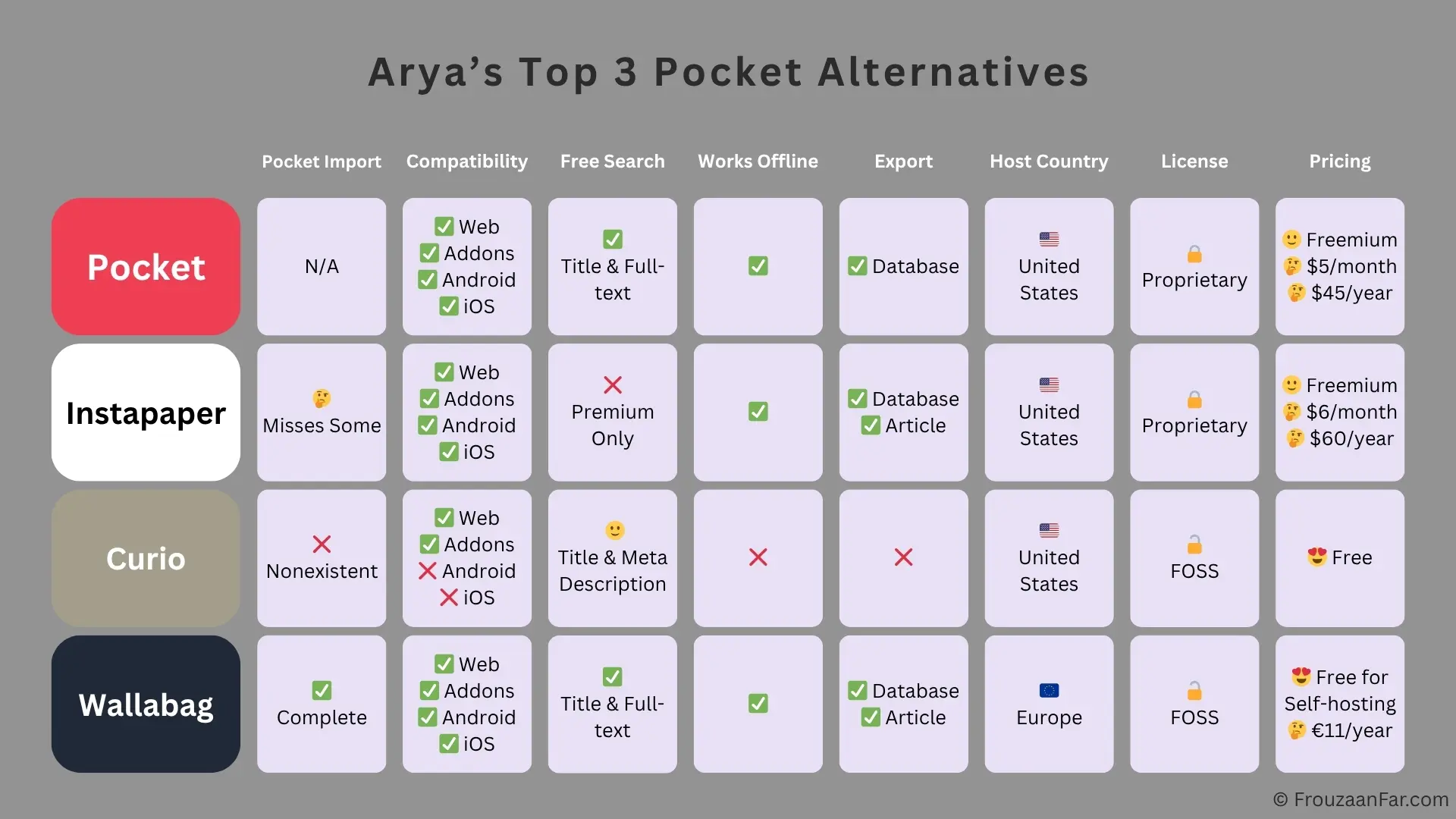
TL;DR Comparison Table
Here’s a table with the essentials of the article: